Hex grid
Paint hexagonal cells on a 2D canvas and turn the pattern into a printable vase-mode toolpath. The viewport splits into a tile editor and a 3D floor preview so you can see the tube path before export. For a radial vase from a profile curve, use G-code Sculptor instead.
How it works
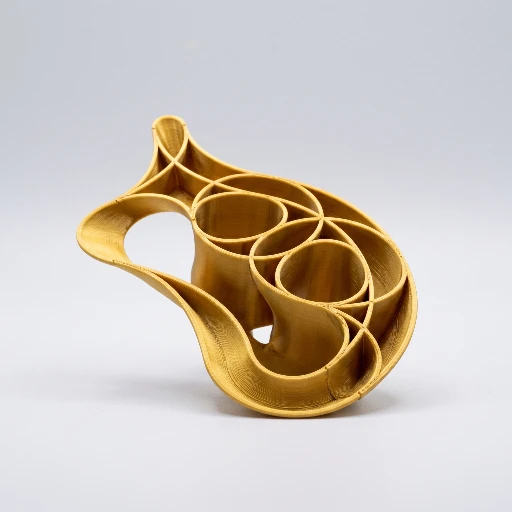
Hex Grid traces smooth curves through your pattern, stacks them for layers, and emits G-code through the same pipeline as the rest of the app—speeds, temperatures, and layer height come from your Print presets.
- Add Hex Grid — the left dock shows grid controls; the main view shows the 2D canvas beside the 3D floor.
- Paint cells — click to cycle inactive → active → double-active (thicker parallel curve) → clear; drag to paint a stroke.
- Tune the map — Grid radius, hex size (mm), perimeters (outline offsets), and layers update the canvas and floor live.
- Preview — hover a cell to highlight it in 3D; check bed fit if the grid approaches your build volume.
- Export — download vase-mode G-code from the Export toolbar.
Docs & tutorials
What Hex Grid is
Hex Grid turns a painted hexagonal canvas into a vase-mode toolpath with a 3D floor preview.
- Input: painted cells, hex size, perimeters, layers, Print presets.
- Output: vase-mode G-code.
- Unlike G-code Sculptor: you paint tiles instead of a radial profile. Unlike Fabric Sculpt: the grammar is a hex lattice, not arbitrary line generators.
- Limits: decorative panels and structured vases—not multi-body CAD. Dedicated beginner tutorials are not in the tutorial registry yet; use the docs tutorial page.
- Learn: spiral / vase · docs overview · tutorial 01 · step-by-step in docs
Paint the grid in the app.
Free to tinker. Open Hex grid, click a few cells, nudge hex size and perimeters, and watch the floor preview follow—then export when it looks right on your bed.